

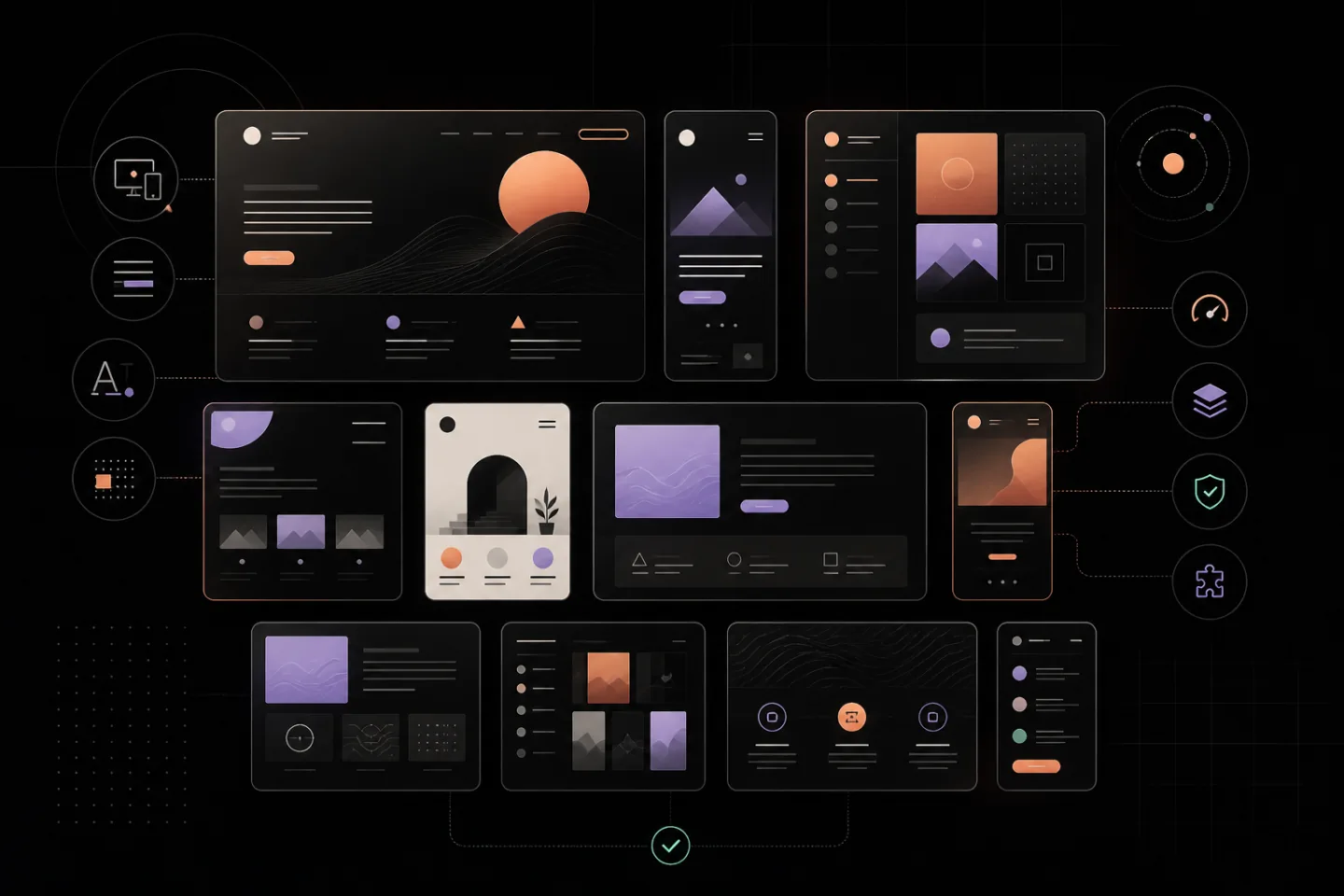
A WordPress theme controls the presentation of a website: its typography, colours, spacing, navigation and page layouts. It should make content easy to find and read without making routine editing difficult. Choosing well therefore requires more than comparing attractive demonstrations. The theme must suit the site’s purpose, work with essential functions and remain manageable as the content grows.
Start by defining what visitors need to do. A publication may depend on readable articles, clear categories and useful archives. A service site may need prominent contact routes and concise landing pages. A catalogue may require structured listings and dependable filters. These practical needs should guide the choice before colour palettes, animations or decorative layouts enter the discussion.
Understand What a Theme Changes
A theme supplies layouts for recurring views such as the home page, individual articles, standard pages, archives, search results and error pages. It also sets shared design rules. Changing a theme normally leaves the underlying posts and pages in place, but it can alter how menus, widgets, featured images and specialised content appear.
Theme templates provide the document structure around content stored by the publishing system. This separation is useful because one template change can improve many pages at once. It also creates risk: a poorly tested change can affect every page that uses the altered template.
Modern themes may allow visual editing of templates and shared components. Older designs may rely more heavily on configuration panels and theme files. Neither approach is automatically better. The important question is whether the editing method matches the skills of the people who will maintain the site.
Write a Requirements List First
List the site’s essential page types, visitor actions and integrations before browsing designs. Separate requirements from preferences. A readable mobile menu is a requirement; a particular animation is usually a preference. This distinction prevents an impressive demonstration from distracting attention from missing fundamentals.
Useful requirements include:
- Layouts for every important content type
- Keyboard-accessible navigation and visible focus states
- Readable text sizes, line lengths and colour contrast
- Responsive behaviour across narrow and wide screens
- Compatibility with essential forms, caching and editorial tools
- A documented update and support process
Remove features that have no defined purpose. Bundled sliders, animation libraries, icon sets and layout systems can add complexity even when they are unused. A smaller set of dependable controls is often easier to understand, test and replace.
Compare Free, Paid and Custom Routes
A free theme can suit a focused site when its standard layouts meet the requirements. The directory of free WordPress themes is a sensible place to inspect available designs and their published documentation. Check whether a candidate has clear setup instructions, a visible change history and support for current platform features.
A paid theme may provide more layouts, controls or direct support, but payment does not prove quality. Review the same evidence you would examine for a free option. Identify which demonstration features are included, which require separate extensions and what happens if updates stop. Avoid designs that store basic page content in proprietary shortcodes or other formats that become unusable after a switch.
A custom theme is appropriate when the site has stable requirements that standard options cannot meet cleanly. It gives greater control over structure and removes unwanted features, but someone must own testing, documentation and future compatibility work. Agree who maintains the files and how another developer could take over before commissioning the build.
Test the Real Content, Not the Demonstration
Theme demonstrations use selected images, short headings and carefully balanced text. Test candidates with a copy of the actual site instead. Include the longest title, a plain page without imagery, a large menu, a long article, an archive and any important form. This reveals overflow, awkward spacing and missing styles that polished sample content can conceal.
Use a private staging copy rather than changing the public site. Match the live environment closely enough to expose compatibility problems. Activate the proposed theme, clear caches and check pages while signed out. Test at several screen widths and use a keyboard to move through menus, links and controls.
Review these areas:
- Navigation: menus open, close and remain understandable without a mouse.
- Content: headings form a logical hierarchy and paragraphs remain comfortable to read.
- Media: images keep sensible proportions and captions do not collide with surrounding text.
- Forms: labels, validation messages and confirmation states remain visible.
- Archives: dates, categories, pagination and empty states are clear.
- Errors: missing-page and search-result views give visitors a useful next step.
Check Performance and Dependencies
Judge performance on representative pages under the same hosting and cache conditions. Compare the current and proposed designs rather than relying on a demonstration hosted elsewhere. Look for unnecessary scripts, styles, fonts and requests. A theme that loads a large library for one minor effect creates work for every visitor and another component to maintain.
Record every required extension and external resource. Ask whether each dependency performs an essential job, receives maintenance and can be removed without breaking the content. Theme code should concentrate on presentation; unrelated functions are easier to preserve when they live outside the design.
Accessibility belongs in the same review. Zoom the page, enlarge text, check contrast and confirm that focus is never hidden. Make sure mobile navigation can be dismissed and that interactive controls have meaningful labels. Automated checks are helpful, but keyboard use and visual inspection catch problems that a score can miss.
Prepare for Installation
Before activation, create a restorable backup of the database and site files. Confirm that the backup is recent and that someone knows how to restore it. Record the current theme, menu assignments, homepage setting, widget areas and any custom styles. Screenshots of key pages make later visual comparisons easier.
Install and configure the theme on staging first. Set typography, colours, logo treatment, navigation and shared spacing before adjusting individual pages. Official guidance on setting up a WordPress theme outlines the usual configuration areas, though the controls available depend on the design.
Do not import demonstration content into an established site unless its effects are fully understood. Imports may add pages, menus, media and settings that then need manual removal. Building the required layouts with real content provides a cleaner test.
Customise Without Creating Fragile Work
Use built-in global style controls for changes to typography, colours and spacing. Keep small style additions narrowly targeted and documented. Broad rules can unintentionally alter navigation, forms or administrative elements, while excessive overrides make later troubleshooting difficult.
Keep code changes separate from files that routine updates replace. For substantial alterations, use the platform’s supported extension method or a site-specific custom theme. Record why each change exists, where it applies and how to test it. This documentation is especially valuable when the original editor is no longer available.
After every significant adjustment, recheck the affected template on desktop and mobile. A header change may alter menu wrapping; a font change may increase heading height; a spacing change may push important controls below the visible area. Small design choices can have site-wide consequences.
Maintain the Theme Deliberately
Theme selection is not a one-off task. Review updates through a controlled process: read the change notes, back up the site, apply the update on staging and inspect important routes before updating the public site. Check menus, forms, archives and specialised page types, not only the home page.
Remove inactive themes that are not needed for recovery or testing. Unused code still requires attention if it remains installed. Apply security updates promptly and restrict administrative access. The official WordPress hardening guidance describes broader measures for protecting the installation beyond theme maintenance.
Consider replacement when the theme no longer supports required platform versions, creates persistent accessibility or performance problems, or depends on abandoned components. A visual preference alone may be solved with modest style changes. Structural limitations, brittle content formats and missing maintenance are stronger reasons to switch.
When switching, audit theme-specific templates, widgets, shortcodes and custom fields before activation. Plan how each item will be retained, rebuilt or removed. Keep the old design and backup available until the new version has passed checks on the public environment. A careful choice, tested against real content and maintained with discipline, gives the site a stable foundation without tying its future to a single appearance.